 |
Accurint conducts on-site "Courthouse Searches" by sending trained researchers to over 3,000 courthouses across
the country to obtain county and federal civil and criminal histories as well as state criminal histories (where available)
of your subject.
Don't show me this window again.
|
 |
|
Run a person search to locate the person on whom you wish to run a court search.
After locating the person, click the Court Seach icon  on the search results screen. This will launch the on the search results screen. This will launch the
Court Search ordering wizard.
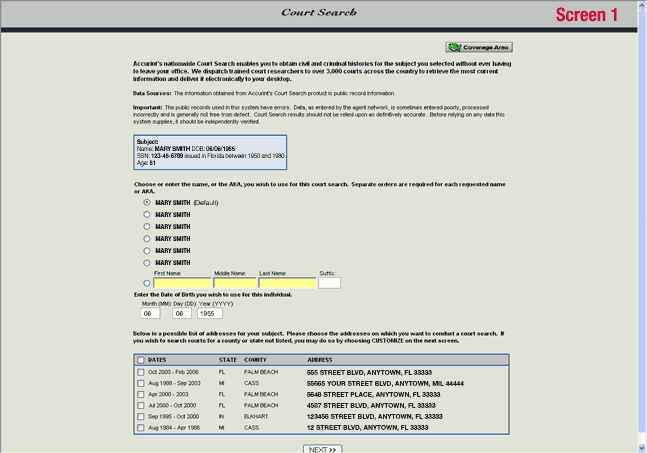
The first page of the wizard (Screen 1) will display a list of current and prior addresses for your subject. You may (1) choose the addresses on which you want to conduct a search or (2) click the NEXT>> button to move to the next screen where you can refine your search even further by selecting the CUSTOMIZE button.
|
|
|
|
..................................................................................................................................................................
Next (Screen 2), you will be shown the available search types (i.e. county, state and federal) and prompted to choose which type(s) of searches to perform on the addresses you chose.
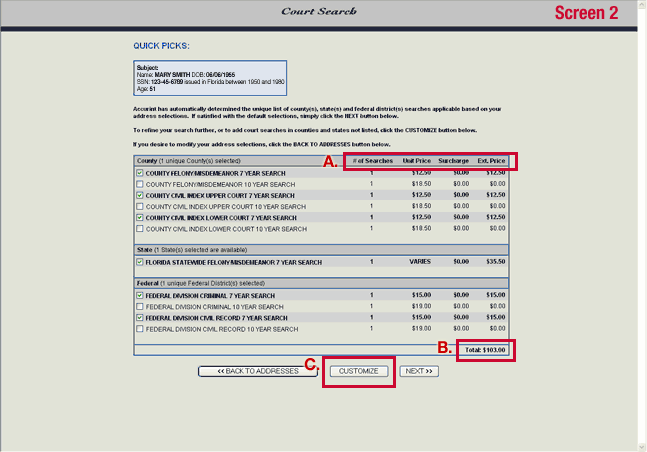
A. With each search type, you know exactly how many searches will be performed, the unit price for each search,
and the extended price.
B. The total cost is prominently displayed.
C. Press the CUSTOMIZE button to refine your search further or to add searches in counties and states not listed.
|
|
..................................................................................................................................................................
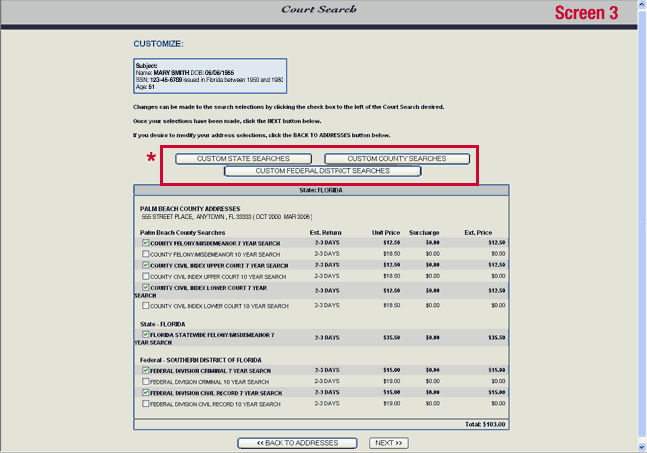
*If you choose to run a customized search, you will be taken to a Custom County, State, or Federal Screen (Screen 3).
|
|
..................................................................................................................................................................
|
|
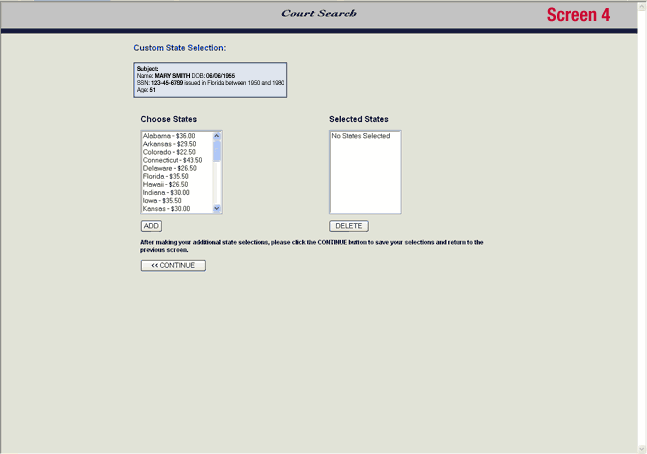
See the example of the Custom State Selection screen (Screen 4) below.
|
|
..................................................................................................................................................................
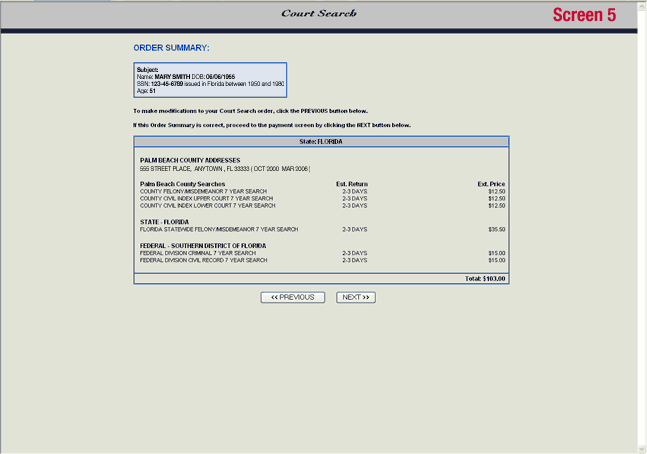
If you choose not to run a customized search, you will be taken from the Quick Picks screen shown earlier (Screen 2)
to an Order Summary screen (Screen 5).
|
|
..................................................................................................................................................................
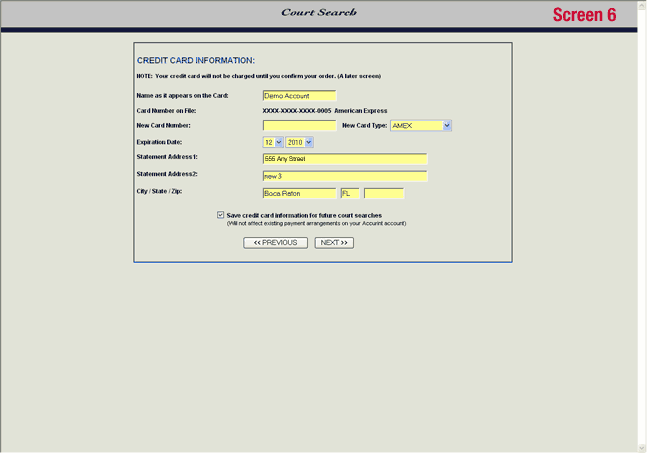
If your company is already billed for Accurint services via a credit card, or you have saved a prior credit card from
a previous Court Search, your information will already be displayed (Screen 6). If you wish to use a different credit card or have not entered one, fill in the appropriate information on the Credit Card Information screen. If you have updated your
credit card information, after you click on the NEXT>> button, you will see a verification screen. Otherwise, you
will proceed directly to the Order Confirmation screen (Screen 7).
 |
|
..................................................................................................................................................................
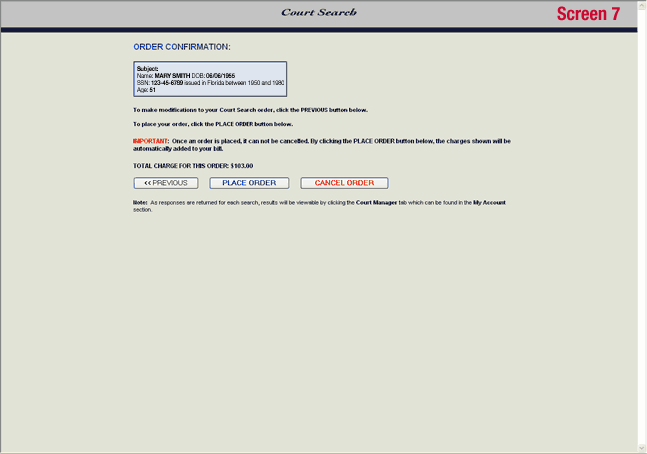
From the Order Confirmation screen, you can return to the previous screen, place your order, or cancel your order.
If you click on PLACE ORDER, your Court Search order cannot be cancelled. By clicking the PLACE ORDER
button below, the charges shown will be automatically added to your bill.
Note: Charges apply for all orders regardless of results found. In some cases, a Court Search order must be paid
with a Credit Card.
To view returned results from this order, click on Report Manager under the My Account section.
|
|
Don't show me this window again.
|